First-time Wi-Fi setup, what the clock does on its own after that, and every setting in the webadmin portal explained.
With no Wi-Fi saved yet, the clock creates its own network. On your phone or laptop, connect to:
| Network name | IvoChess-Setup |
|---|
Open http://192.168.4.1/ in a browser (or just wait for the captive-portal prompt to pop up on its own). It'll ask for a login:
| Username | ivochess |
|---|---|
| Password | checkmate |
Change this password later from the portal's own "Webadmin access" section — see below.
Enter your home network's name and password, then save. The clock restarts and joins your network — from then on it's reachable at http://ivochess.local/ (or its IP) instead of the setup hotspot.
One more step before it can show a live game — see the account connection guide for how to set up any of the three.
Once it's set up, the clock runs on its own — no phone or app needed to actually use it.
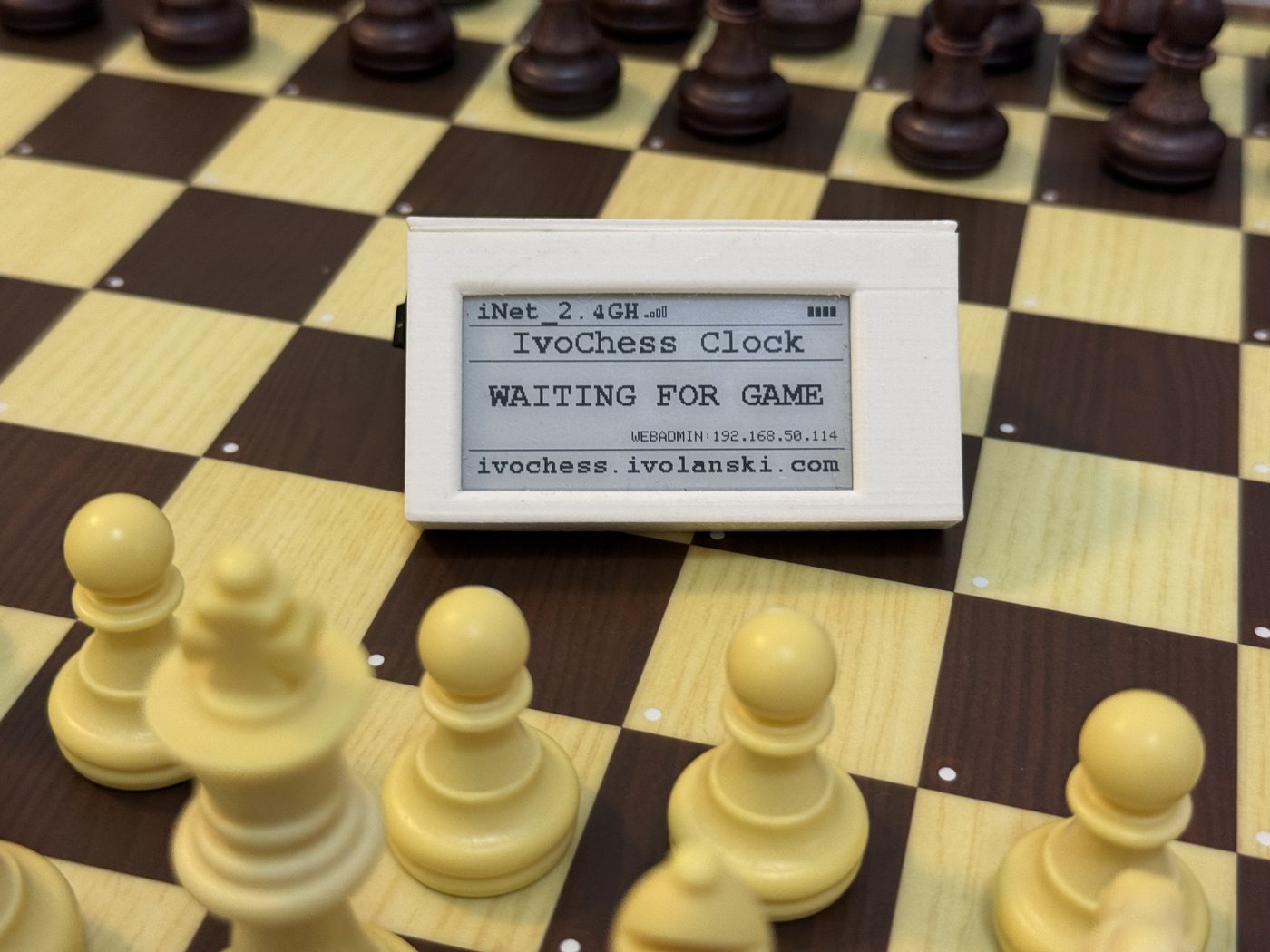
Sits idle showing Wi-Fi and battery status. Start any live game on whichever data source is connected — chess.com, Lichess, or ChessConnect — from a physical board, an app, or the website itself, and the clock picks it up automatically within a few seconds. If it sits idle for 10 minutes straight with no game, it stops checking and shows "Restart for new game" — a quick power cycle (the on/off switch) brings it back. This just keeps a clock left on all day from polling forever with nobody at the board.
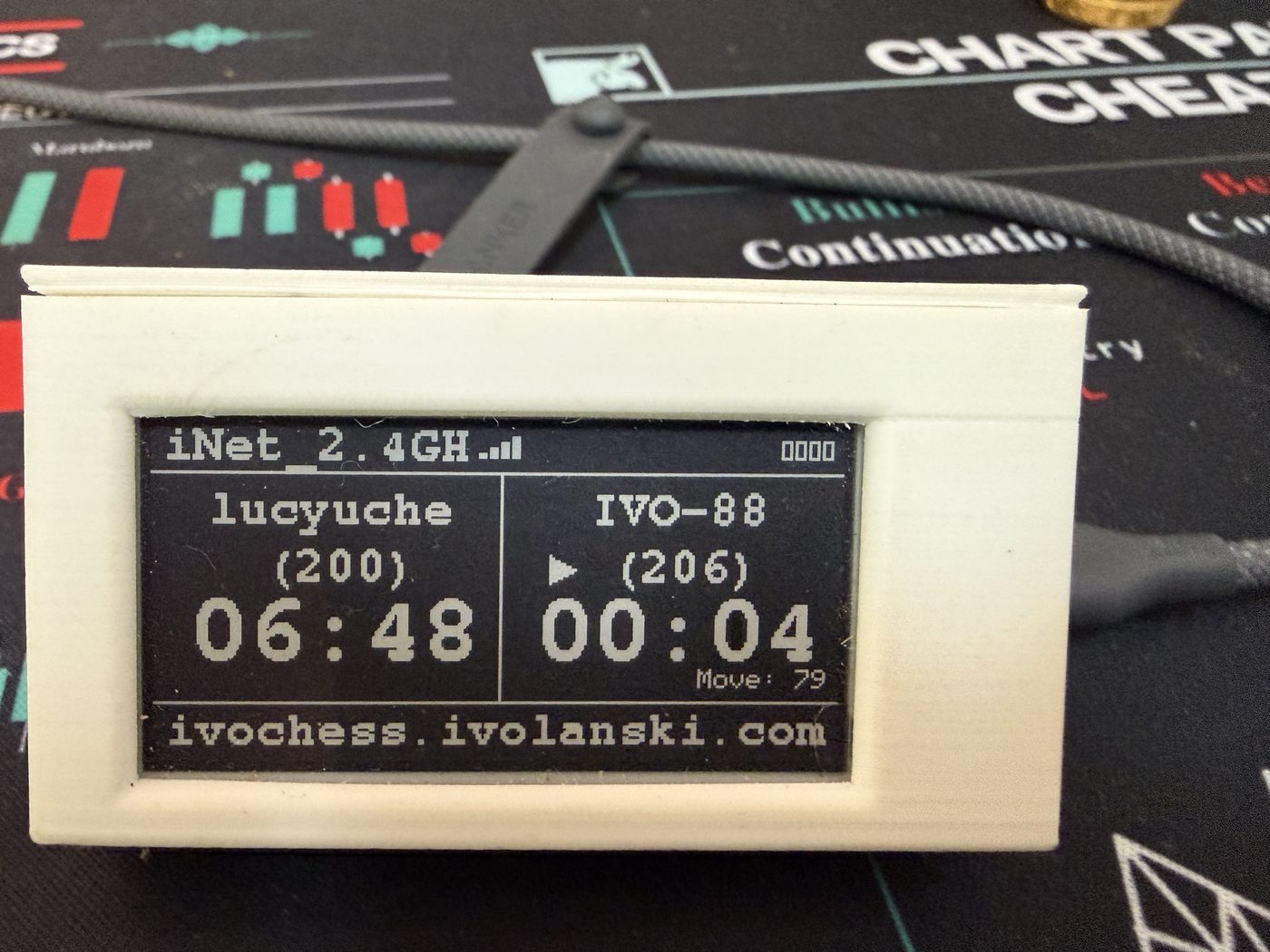
Both clocks, both ratings, and the move count update live as the game is played, with a marker showing whose turn it is.
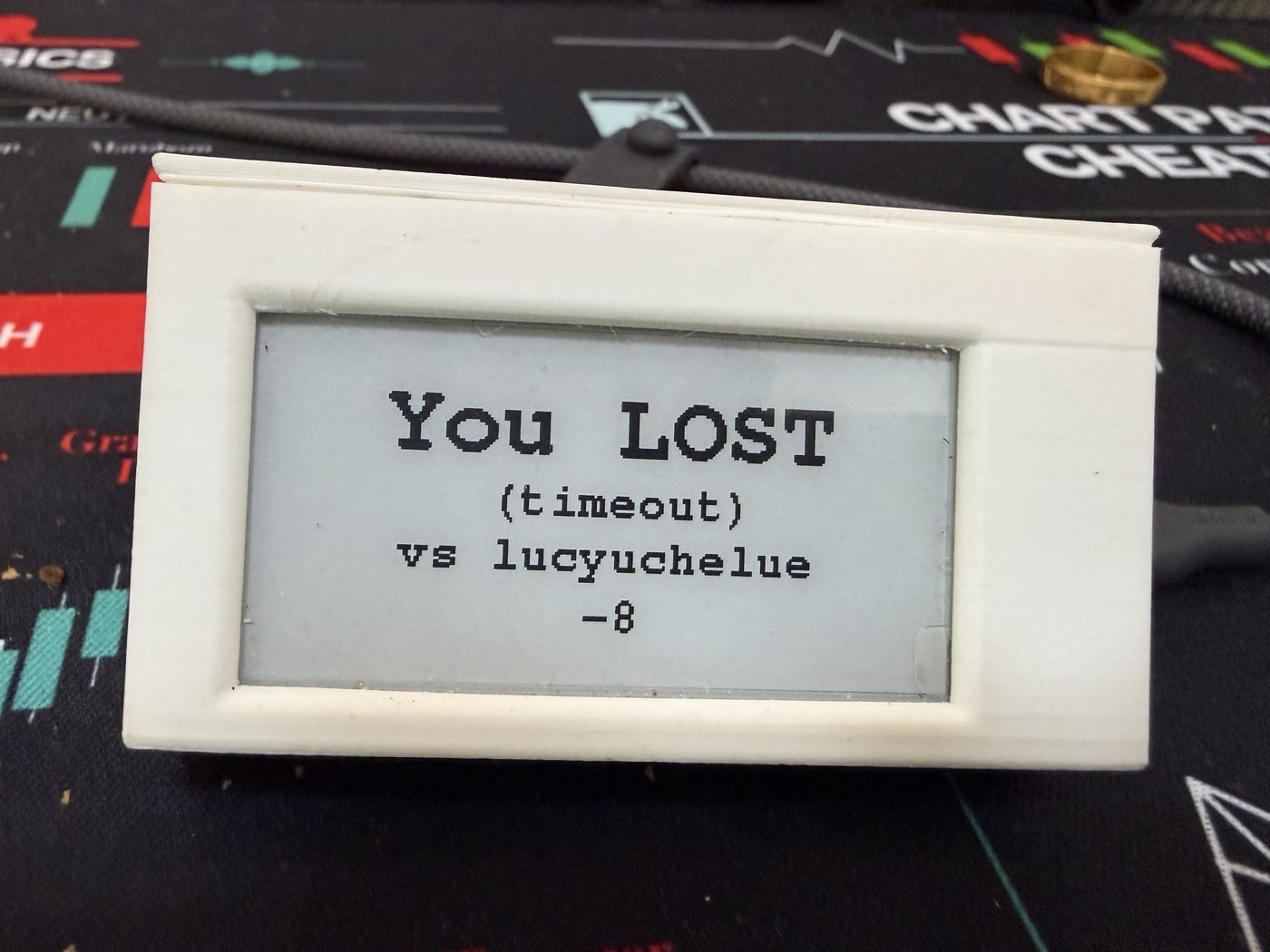
Shows the result — win, loss, or draw, with the reason and rating change — for a configurable number of seconds before returning to the waiting screen.
The button on top of the clock does different things depending on which data source is connected.
| Data source | What pressing it does |
|---|---|
| ChessConnect (Bluetooth) | Sends your move. Make the move on the physical board first, then tap the button to actually transmit it to the connected app — this is what stops an accidental move firing just from touching or nudging a piece, and makes the clock feel like a real analog chess clock. |
| Chess.com / Lichess (Wi-Fi) | Resumes checking for a new game after the clock's idle timeout ("Restart for new game"), without needing to power-cycle the device. |
All 8 LEDs always show the same color together (the case diffuses the light, so individual LEDs aren't distinguishable). Every color and both brightness levels below are configurable from the webadmin.
| Situation | Default color |
|---|---|
| No Wi-Fi connection | Purple |
| Low battery | Red, blinking |
| Your turn | Cyan |
| Opponent's turn | Yellow |
| You won | Green |
| You lost | Pink |
| Draw / unknown | White |
Brightness automatically steps down at night (22:00–7:00 by default) so it's not glaring in a dark room — both the day and night brightness levels are adjustable.
Reachable at http://ivochess.local/ (or the clock's IP) any time it's on your network. It's organized into four tabs — Main (Wi-Fi and webadmin login), Connections (chess.com, Lichess, data source), Sounds, and LEDs — each with its own Save button, so saving one doesn't touch fields you're still editing on another tab. Most changes apply immediately with no restart — only a Wi-Fi network/password change reboots the clock.
Network name and password. Changing either reconnects the clock — useful for moving it to a different network without a factory reset.
A single CHESSCOM_REMEMBERME cookie, plus your chess.com username (used to show "you" on the correct side of the game screen, and to resolve win/loss). The clock derives and refreshes its own session from that one token, so there's nothing else to paste. See the account connection guide for how to get it.
A proper OAuth login — click "Connect to Lichess," approve access on Lichess's own site, and you're done. No cookies or copy-pasting involved. See the account connection guide for details.
No account to connect here — just select it as the data source and pair the clock from Chessconnect's own settings. See the account connection guide for the steps.
Language (English/Portuguese) and how many seconds the result screen stays up after a game ends before returning to the waiting screen.
Switch between chess.com, Lichess, and ChessConnect as the clock's live game source. Switching never erases the others' saved credentials — flip back any time without reconnecting.
A color picker for each situation in the table above, plus separate day/night brightness sliders (0–255). A "Number of LEDs" field is also here — it only matters if your build uses a different strip length than the default, so leave it alone otherwise. Use the "Test LED colors" button to cycle the strip through all 7 configured colors, about 1.5 seconds each, so you can preview the whole set — even colors you just typed and haven't saved yet — without having to actually reach every game state.
A volume slider (0–100%, where 0 is mute) applies to every event — handy for turning it down or off entirely somewhere quiet, like a library. 100% is as loud as the bare piezo speaker can go; there's no amplifier, so it can't go louder than that.
Below that, one card per game event — game started, opponent's move, your move, check (ChessConnect only), you won, you lost, draw, and game end. Each has its own mute checkbox and an optional custom melody field; leave a field blank to use the built-in default melody, shown as the field's placeholder text.
Two melody formats are accepted: a simple comma-separated list of freqHz:durationMs pairs (e.g. 523:100,659:100,0:50,784:150, where 0 is silence), or RTTTL — the classic ringtone format behind countless free pre-made melodies (e.g. Nokia:d=4,o=5,b=125:8e6,8d6,2f#,2g#,8c#6,...). Paste one in directly, no need to compose your own — the webadmin links to a composer and a ringtone library with thousands of free melodies to pick from.
Each event has a "Test" button that plays the melody immediately — even one you just typed and haven't saved — so you can preview it before committing, and a "Reset to default" button to discard your custom melody.
Change the login username/password for this portal itself — do this soon after first setup, since ivochess/checkmate is a known default.